Posts

Showing posts with the label sharepoint

SharePoint List View Formatting: Application Development Dashboard
Image
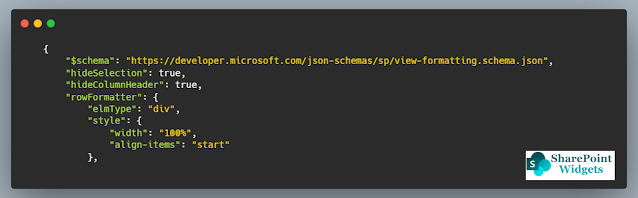
 Hi Friends, Today I will be showing a simple dashboard, which displays the current status of the applications in development. This dashboard is mostly effective in quick review meetings or when presenting the application status to higher management. Below is how the dashboard will look like This is a very simple view but thought sometimes a simple view is much better to present rather than some complicated views. You can find the JSON here (on GitHub) Columns Needed: Title (Renamed as Application Name) Status    Hope this view will help you. Happy Coding..!! #Microsoft #SharePointWidgets #ListViewFormatting

Power Automate: Rename file in SharePoint Online

Image
  We often get to change the name of the file, so in this article, I will explain how to rename the file in SharePoint Online using Microsoft Power Automate. Below is the file which I will be renaming. Step 1: Get the file properties We only need to have the SharePoint item id, for which we want to rename the file Step 2: Update the File Name Add the "Send an HTTP request to SharePoint" connector, and update the following properties Method : POST Uri : _api/web/lists/GetByTitle(' <LIBRARY TITLE> ')/items( <ITEM ID> )/ValidateUpdateListItem Body: {     "formValues" :[         {             "FieldName" : "FileLeafRef" ,             "FieldValue" : "<New File Name>"         }     ] } Execute the flow, and the file will be renamed Happy Automating..!! #PowerAutomate #SharePointWidgets #Microsoft

Power Automate: How to Add "New Line" to the text in SharePoint multiline text field

Image
  Q. How to add "New Line", while adding the text to the SharePoint multiline text field?  A . In order to add the new line while adding a text to the multiline SharePoint field, I will demonstrate the simplest approach. Although you can find multiple approaches, but this one seems to be very easy and quick. You need to append the below expression to the text to make it to the new line: decodeUriComponent('%0A') If you are adding any array, then join the array using this expression or if you are building this string, then append this expression to the string. Step 1:  Add a variable and add the below expression (Write the code under the Expression tab) STEP 2: This is how your variable will look like      STEP 3: Output of the Address columns which is of Type Multiline text field Happy Coding..!! #Microsft #SharePointWidgets #PowerAutomate

Key Points to maximize you SharePoint Migration using Sharegate.

Image
  Many organizations are going through a shift of platforms i.e... from on-premise solutions to online solutions, and SharePoint is one of the major platforms. In this article, I will be highlighting some basic key concepts which might help you out in maximizing the amount of data transfer from SharePoint on-premise to SharePoint Online using Sharegate as a tool. The suggestions I mentioned in the article are based on my years of experience, and might not suit some scenarios Computing Power Many of us think that while using Sharegate we do not require a powerful system for migration as it is just the transfer of data. But that is not correct as before sending the data, Sharegate does a lot of processing. So having a powerful computing machine will speed up the processing and you can gain the speed. Though Sharegate recommends optimal performance with 4 cores, my suggestion is to go with a minimum of  8 CPU cores 32Gb RAM 256 GB of SSD This will give the maximum resources and p...

How to get site collection created date in SharePoint Online

Image
  Q: How to get the site collection created date in SharePoint online Answer:  This can be done using the PnP SharePoint commands $connection  =   Connect-PnPOnline   - Url  " <SITE URL> "   - ReturnConnection  - UseWebLogin $web  =   Get-PnPWeb   - Includes Created  - Connection $connection Write-Host  $web.Created Happy Coding...!!!

Retrieve SharePoint List Item Versions in SharePoint Online using PnP

Image
  In many cases, we need to identify the versions of the SharePoint List Item. So here is the way to get all the versions of the item using PnP. function   Get-ItemVersion  {      param  ($spURL, $spListTitle)           $checked  =  ([ char ] 8730 )           Write-Host   " Creating connection to the SharePoint Online..... "   - ForegroundColor Yellow  - NoNewline     $spConnection  =   Connect-PnPOnline   - Url $spURL  - UseWebLogin  - ReturnConnection  - ErrorAction Stop      Write-Host  $checked  - ForegroundColor Green       Write-Host   " Reading list items from ' $listTitle '..... "   - ForegroundColor Yellow  - NoNewline    ...

Comparing List Item count of SharePoint Sites

Image
 Hi friends, When we are migrating we would like to automate as much as possible. One of the processes that I automated was the comparison of the list item count for the two SharePoint sites. Using this PowerShell script will generate the CSV file will all the list differences. This is the quick way of validating the migration of thousands of sites. Happy Coding..!!

Rename Folder using Microsoft Flow / Power Automate in a Document Library in SharePoint Online

Image
Hi Friends, Today blog is about renaming the folder in the document library using the MS FLOW or MS Power Automate. When I started working on this it seems to be an easy job, but if you look into the connectors you'll find it really difficult as there is no straight forwards connector to do the job. Issues encountered If you try using the " Get Folder Metadata " connector, you'll not be able to get the ID of the folder as it is returning as the negative value. If you get the ID somehow and try to update the folder name using the " Update File Properties " connector, you'll end up renaming only the title of the folder, but it will still have the old name as the display name which in case is again a failure. There is no other connector which can be utilized to achieve the task of renaming the folder in a document library directly. Solution The solution is a simple three-step (at least in this example). Step 1: Initialize variables In case you are computing...

Connect-PnPOnline Error: "Token request failed"

Image
Hi friends, I was working on PnP Powershell and while trying to connect it to the site via AppId & AppSecret or ClientId & ClientSecret I started getting the error: " Connect-PnPOnline: Token request failed ". After a lot of googling, I got the solution or say the root cause of the issue. Find out the expiration dates of the SharePoint Add-ins installed to the Office 365 tenancy When a SharePoint add-in is created, the ClientId and ClientSecret is valid for the duration of 1 year, after that you need to renew the ClientSecret.  To verify the valid keys in your tenant execute the below code Step 1 : Install the MSOnline module To get the information, you need to install the MSOnline module. To install open the Powershell application with the Administrator rights and execute the below command This will install the necessary module Step 2: Check for the valid ClientId's Execute the below code in the Powershell. This will return all the valid ClientID's. Below scr...

List View Row Formatter - Issue Tracking

Image
Hi friends, Microsoft has changed the SharePoint drastically and now we do not need to write the custom solution for every need and take a toll on the performance. List view formatted is very powerful and I think it solves a lot of problems where we need to write the custom code and there is the least performance hit as well. Today I have worked upon the "Issue Tracking List" - list view row formatted. You can find the JSON file here Features Simple view Large view dedicated to the comments section, so once can read all the comments against the issue in a single view without even opening the item A lot of filters, clicking on the below columns filters the list upon that value. So one not need to create multiple views Happy Coding !! #Microsoft #SharePointWidgets

Know your SharePoint Framework (SPFx) version

Image
Hi Friends, Most of the time when we are working on the SharePoint Framework or SPFx solutions, the version of each component can create issues while building the solutions. One of the common issues is with the SPFx version. SPFx version is the version of the SharePoint Framework yeomen generator installed on your machine. With the difference in the version, a solution might differ in the import versions of other libraries, change in solution scaffolding, and more... ➡️Steps to know your SPFx version Open the console  Type in the following command  npm ls -g --depth=0 @microsoft/generator-sharepoint Hit enter and wait for a few seconds. You'll get the response   Happy Coding #Microsoft #SharePoint #SharePointWidgets

Powershell script to delete the Modern Pages in SharePoint Online

Image
Hi Friends, In one of the scenarios I have written a PowerShell script to delete large number of pages. Since this activity can be very common, so I thought to share it here as well. Here is the PowerShell script. Happy Coding Sumit Kanchan #SharePointWidgets #Powershell

Custom Control for Property Pane in SharePoint Framework (SPFx) Solution

Image
Hi Friends, In today's blog I will be explaining how to create a custom control for Property pane in SharePoint Framework, Many times we need a functionality which we cannot be fulfilled using the OOB (out-of-box) controls. For which we have to go with the customized solution. A very basic need that I encountered and will showcase in this blog is the display of colored text with some sort of icon in the Property Pane. For this we can use label but you cannot change the color of the text and there is no property to handle the icon class as well or you cannot add custom css based on the logic. So to demonstrate and understand how the custom control can be created and functions in Property pane of a SharePoint Framework solution. To implement this functionality I will be extending the properties of a Label and adding some more properties to achieve the functionality. Let's start with the structure and it's explanation then we'll move through the code inside ...

Hiding Left Navigation from the Modern Team Site in SharePoint

Image
Hi Friends, We usually have a very simple requirement that many times we don't require the left navigation. There can be multiple reasons around it. In modern SharePoint Communication site, Microsoft has given is out-of-box, where the navigation is at the top. But what if you want to hide the left navigation from the Modern Team site. So here is the solution Go to Site Settings Click on the " Navigation Elements" under Look and Feel. Un-check the " Enable Quick Launch " option Click OK And now you'll notice that the left navigation option is no more. Pros: Left Navigation is removed Now the content area has full width Webparts will act as the full width webpart , and limitation of "Full width section" is not there as the common section is now acting as full width Content can be more expressive Cons: No more navigation on the whole site. Happy Coding Sumit Kanchan #SharePointWidgets #SharePointOnl...

PowerShell Script to update Page Layout in SharePoint online using PnP

Image
Hi Friends, I have came across a very common requirement where I need to update the page layout of the SharePoint online page (classic page), but I think same can be used to update the page layout to the modern SharePoint site. For this I have written a PowerShell script which will update the pages from a specif page layout to the desired page layout. In this script I have also taken care if you are updating the page layout of the subsite, than also this script will handle the scenario. There are 2 parameters which you need to update Old page layout title New page layout title The updation due to this script will not change the modified by as well as modified date, so the original data is not lost. Please provide your comment if you feel that something can be enhanced in the script or if there is any issue

Time based query issue in SharePoint Framework

Image
Issue: Whenever you are making query to the SharePoint online using the REST API and your query is based on the time stamp, remember that SharePoint treat your time as the GMT timezone. So if you want to fetch information based on local time zone which we usually do, always set the offset and also include the daylight saving. The same is true even you are trying to put in some data to the SharePoint. You will be saving the local timezone but SharePoint will consider it as GMT time zone , and there you won’t be able to save/retrieve the correct records based on the time zone. Solution Solution is simple. SharePoint Framework webpart/extension offers this capability OOB, but there were no articles i was able to find. // will get the final offset in minutes    let finalOffset : number = this . context . pageContext . web . timeZoneInfo . offset + this . context . pageContext . web . timeZoneInfo . daylightOffset    // Now set th...

SharePoint Framework (SPFx) : Cascade dropdown in webpart properties

Image
Hi Friends, In this blog I will be creating a cascade drop down in the webpart properties of a SharePoint Framework - SPFx webpart. In my previous post I have shown how to create a dynamically populated dropdown in the SharePoint Framework SPFx webpart . This blog will be in continuation to that, where I will be extending the previous example to populating the list in the dropdown. In this example I will be showing all the "Views" for the selected list. As we usually comes with the scenario where we need the cascade dropdown. For full code files you can refer here on github. Step 1: Setting up your SharePoint environment If you have not yet setup your SharePoint environment , then refer to my previous blog on Setting up your SharePoint environment . Step 2: Creating a empty SharePoint Framework Project Create a empty SharePoint Framework project. If you are new than refer to my previous article on Set up your new SPFx project .  Step 3: Ins...