Posts

Showing posts with the label sharepoint online

SharePoint List View Formatting: Application Development Dashboard
Image
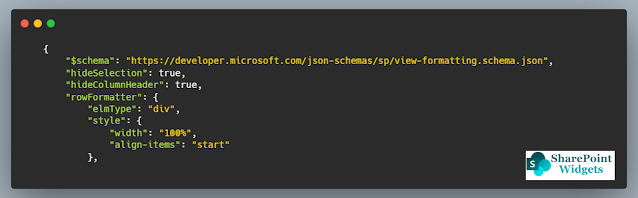
 Hi Friends, Today I will be showing a simple dashboard, which displays the current status of the applications in development. This dashboard is mostly effective in quick review meetings or when presenting the application status to higher management. Below is how the dashboard will look like This is a very simple view but thought sometimes a simple view is much better to present rather than some complicated views. You can find the JSON here (on GitHub) Columns Needed: Title (Renamed as Application Name) Status    Hope this view will help you. Happy Coding..!! #Microsoft #SharePointWidgets #ListViewFormatting

Power Automate Tip: Reduce loop to improve performace

Image
  If you are creating very complex flows using Microsoft PowerAutomate which contains loops ( Apply To Each connector), you must have noticed that performance degrades sharply.  I had a loop of 120 items with some complex business logic, which was taking around 40 mins to execute the complete flow. But after I have removed the loops and reduced the number of variables now flow gets completed in less than 8 mins. So you can imagine the performance if your flow is going to be executed on a very large dataset. To improve the performance of the flow, it's necessary to reduce the loop count and to do that  I count on the 2 best functions from Power Automate. To explain the below functions, I will take a scenario where there are below fields  Title City State #1: Select You can make use of the Select function to create a collection/array of single-valued or complex objects, even without looping each item. Case 1:  Suppose I want to collect all the cities from all the...

Power Automate: How to Add "New Line" to the text in SharePoint multiline text field

Image
  Q. How to add "New Line", while adding the text to the SharePoint multiline text field?  A . In order to add the new line while adding a text to the multiline SharePoint field, I will demonstrate the simplest approach. Although you can find multiple approaches, but this one seems to be very easy and quick. You need to append the below expression to the text to make it to the new line: decodeUriComponent('%0A') If you are adding any array, then join the array using this expression or if you are building this string, then append this expression to the string. Step 1:  Add a variable and add the below expression (Write the code under the Expression tab) STEP 2: This is how your variable will look like      STEP 3: Output of the Address columns which is of Type Multiline text field Happy Coding..!! #Microsft #SharePointWidgets #PowerAutomate

Key Points to maximize you SharePoint Migration using Sharegate.

Image
  Many organizations are going through a shift of platforms i.e... from on-premise solutions to online solutions, and SharePoint is one of the major platforms. In this article, I will be highlighting some basic key concepts which might help you out in maximizing the amount of data transfer from SharePoint on-premise to SharePoint Online using Sharegate as a tool. The suggestions I mentioned in the article are based on my years of experience, and might not suit some scenarios Computing Power Many of us think that while using Sharegate we do not require a powerful system for migration as it is just the transfer of data. But that is not correct as before sending the data, Sharegate does a lot of processing. So having a powerful computing machine will speed up the processing and you can gain the speed. Though Sharegate recommends optimal performance with 4 cores, my suggestion is to go with a minimum of  8 CPU cores 32Gb RAM 256 GB of SSD This will give the maximum resources and p...

How to get site collection created date in SharePoint Online

Image
  Q: How to get the site collection created date in SharePoint online Answer:  This can be done using the PnP SharePoint commands $connection  =   Connect-PnPOnline   - Url  " <SITE URL> "   - ReturnConnection  - UseWebLogin $web  =   Get-PnPWeb   - Includes Created  - Connection $connection Write-Host  $web.Created Happy Coding...!!!

Alternative to Discussion list in SharePoint Online

Image
  In SharePoint Online one of the most missed features from the legacy system is the ability to create discussion forums. Since we do not have the OOB functionality, but we still can achieve it using the OOB features. In this post, I will show you how you can create the discussion forums using OOB features and with a more attractive UI.  Let's start and set up the discussion Forum. STEP 1: Create necessary columns in Site Pages Library To Achieve the functionality, I have made use of the "Site Pages" Library as it gives you the OOB ability to comment and like on the page. In order to make it fully usable, we will create a column  PageType: This will tell us whether the page created is a discussion or the page Values: Page, Discussion STEP 2: Create Custom View Create a View (in my case I have created the view by the name Discussion), ...

Play Big with large lists and document libraries

Image
  What if the SharePoint list or library grew too big? This is a very common question when you are designing the SharePoint solution. So in this article, I will try to explain how you can do that. Impact of unhandled Large List So, the problem first, What is the impact if it grew too large..?? Will we lose data ... ?? NO Will, the data be deleted... ?? NO Is data not safe.. ?? NO What is the Threshold limit? So what is the impact of a large list?? yes, Threshold is the cause The impact is that you will get the threshold error if your view contains records greater than 5000. When any list or library view returns records of more than 5000 it displays the threshold error. This is the hard-line limit a view can show up the number of records. So, there are multiple ways you can handle this error Solution 1: Switch to Modern View, as the latest the best and will be continuously improved. For modern Microsoft is continuously evolving and more enhancement will be there in the future. Solut...

Retrieve SharePoint List Item Versions in SharePoint Online using PnP

Image
  In many cases, we need to identify the versions of the SharePoint List Item. So here is the way to get all the versions of the item using PnP. function   Get-ItemVersion  {      param  ($spURL, $spListTitle)           $checked  =  ([ char ] 8730 )           Write-Host   " Creating connection to the SharePoint Online..... "   - ForegroundColor Yellow  - NoNewline     $spConnection  =   Connect-PnPOnline   - Url $spURL  - UseWebLogin  - ReturnConnection  - ErrorAction Stop      Write-Host  $checked  - ForegroundColor Green       Write-Host   " Reading list items from ' $listTitle '..... "   - ForegroundColor Yellow  - NoNewline    ...

Comparing List Item count of SharePoint Sites

Image
 Hi friends, When we are migrating we would like to automate as much as possible. One of the processes that I automated was the comparison of the list item count for the two SharePoint sites. Using this PowerShell script will generate the CSV file will all the list differences. This is the quick way of validating the migration of thousands of sites. Happy Coding..!!

Adding Script Editor web part to SharePoint classic page using PowerShell

Image
 Hi friends, When we are migrating the SharePoint on-prem to SharePoint online, we need to tell the users about the site is migrated and there are multiple ways of doing it. One of them is to add the redirection script on the page so that the user will get redirected by itself to the newly migrated site. In this blog, I will be showing how to add the script editor web part using the PowerShell and add the script as well. Problem Statement I have a SharePoint list where all the old sites and new sites are mapped. Need to read all the items and add the script editor web part along with the script for the redirection of the page to the new site URL. Script added - It highlights the page and redirects the user to the new site after 10 seconds. Note: If there is a need to change in the script, do change in the  $WebPartXml  variable. Hope this script will save a lot of time and will help you. Happy Coding..!!

Logging in SharePoint Framework Solutions

Image
Hi Friends, today I will be discussing about how logging should be done in SharePoint Framework of SPFx solutions. Logging plays a very important role when we need to debug the code in the production for any error and improper or no logging makes it really hard to find the root cause of the issue. While logging we need to take care of the following pointers What information needs to be logged Where to log How long it should be maintained etc... To take on this burden, Microsoft has given a dedicated class for the logging which can be utilized well to make the purpose. @microsoft/sp-core-library This library holds the solution. In sp-core-library Microsoft has exported a class name " LOG " which contains the static methods to write the logs Below the how you can import the class into your solution import { Log } from ' @microsoft/sp-core-library ' ; In this class, you'll get 4 static methods Error Verbose Info Warn Let's have a look on how to use each of the me...

SPFx Chat Bot - using SharePoint Framework Extension

Image
 Hi Friends, Today I have created an SPFx chatbot using the SharePoint Framework extension. This is a small simple to configure bot. It consumes the QnAMaker API to retrieve the answers for the asked questions. The code c an be found here Features !! Easy to configure with little configurations Compatible with the prompts Displays the formatted text as done in the knowledgebase Can filter on single metadata value as well as multi values Option to select the operator for the filter values Its an SPFx extension, so can be deployed at a site collection level or the tenant level   Configuration Needed. Login to the QnAMaker.ai Create the knowledgebase (follow steps here  ) Got to the settings  follow the markers below to retrieve the configuration To get the source code click here Working Demo Steps for deployment There are 2 ways how you can deploy Deploying package directly To deploy the package directly follow the below steps Go to the release page on Github by clicki...

SharePoint List View Row Formatting: Deployment Schedule

Image
Hi Friends, Many of us have maintains the deployment schedule in SharePoint List and with a lot of columns and information, it is really painful to have a view with all relevant information. Today I had worked on the SharePoint Deployment Schedule list to give it an interactive view so that one can know about the status one first sight. Code can be found here With the help of JSON, the view displays the current status of the deployment for different environments, the responsible person, and the spring in which it was to be deployed. There are two views, List View Tile View To get the view following columns will be needed Title Application Package Version Status QA Deployment UAT Deployment PROD Deployment Responsible QA Deployment Sprint UAT Deployment Sprint PROD Deployment Sprint Hope this post will help you. Happy Coding..!! #Microsoft #SharePointWidgets #ListViewFormatting

List View row Formatting: Discussion Board

Image
Hi Friends, I have seen that in on-prem many of the users are using the discussion feature, but in SharePoint Online we do not have this feature. To give it a thought I have implemented somewhat similar functionality. Discussion board formatting gives the ability to showcase the discussion which is a page, under specific category which will make more sense to the discussion board. So, whatever category you want to create, create the folder for that and the corresponding pages beneath it. This discussion board formatted displays the banner image (not the thumbnail image) and showcases it in the front along with the title, description, Likes, Comments, Date of last edit, and the owner of the page(not the author). No new column needs to be created only the existing column needs to be added to the view. For that execute the below PnP code # If want to modify the existing view Set-PnPView   - List  " Site Pages "   - Identity  " ...

SharePoint Online list conditional formatting and list forms formatting

Image
Hi Friends, As of today's update Microsoft is coming up with some new features as part of the SharePoint list and list forms formatting are concerned. Below are the highlights of the video: New Term has been introduced: RULES Using these rules one can do the column formatting without writing the JSON Customization of list forms (apart from PowerApps) Show/Hide of columns conditionally Re-arrange the rendering of the fields (sorting) Happy Coding Sumit Kanchan #Microsoft #SharePointWidgets

Powershell script to delete the Modern Pages in SharePoint Online

Image
Hi Friends, In one of the scenarios I have written a PowerShell script to delete large number of pages. Since this activity can be very common, so I thought to share it here as well. Here is the PowerShell script. Happy Coding Sumit Kanchan #SharePointWidgets #Powershell

Hiding Left Navigation from the Modern Team Site in SharePoint

Image
Hi Friends, We usually have a very simple requirement that many times we don't require the left navigation. There can be multiple reasons around it. In modern SharePoint Communication site, Microsoft has given is out-of-box, where the navigation is at the top. But what if you want to hide the left navigation from the Modern Team site. So here is the solution Go to Site Settings Click on the " Navigation Elements" under Look and Feel. Un-check the " Enable Quick Launch " option Click OK And now you'll notice that the left navigation option is no more. Pros: Left Navigation is removed Now the content area has full width Webparts will act as the full width webpart , and limitation of "Full width section" is not there as the common section is now acting as full width Content can be more expressive Cons: No more navigation on the whole site. Happy Coding Sumit Kanchan #SharePointWidgets #SharePointOnl...

PowerShell Script to update Page Layout in SharePoint online using PnP

Image
Hi Friends, I have came across a very common requirement where I need to update the page layout of the SharePoint online page (classic page), but I think same can be used to update the page layout to the modern SharePoint site. For this I have written a PowerShell script which will update the pages from a specif page layout to the desired page layout. In this script I have also taken care if you are updating the page layout of the subsite, than also this script will handle the scenario. There are 2 parameters which you need to update Old page layout title New page layout title The updation due to this script will not change the modified by as well as modified date, so the original data is not lost. Please provide your comment if you feel that something can be enhanced in the script or if there is any issue

Time based query issue in SharePoint Framework

Image
Issue: Whenever you are making query to the SharePoint online using the REST API and your query is based on the time stamp, remember that SharePoint treat your time as the GMT timezone. So if you want to fetch information based on local time zone which we usually do, always set the offset and also include the daylight saving. The same is true even you are trying to put in some data to the SharePoint. You will be saving the local timezone but SharePoint will consider it as GMT time zone , and there you won’t be able to save/retrieve the correct records based on the time zone. Solution Solution is simple. SharePoint Framework webpart/extension offers this capability OOB, but there were no articles i was able to find. // will get the final offset in minutes    let finalOffset : number = this . context . pageContext . web . timeZoneInfo . offset + this . context . pageContext . web . timeZoneInfo . daylightOffset    // Now set th...